 Program
Pieces Tutorial: Pluggin In a Program PieceProgram
Pieces Tutorial: Pluggin In a Program Piece
Program
Pieces Tutorial: Pluggin In a Program PieceProgram
Pieces Tutorial: Pluggin In a Program PieceThis tutorial demonstrates using the Administrator Console to plug a piece you have created into the program
...using one of the tutorials in this section such as HelloUserDisplay
Normally the working directory for Mountain Meadow 3 is c:\Program Files\EastRidges\MM3\
Note the output from your project is normally the project name with the dll suffix, such as HelloUserDisplay.cs in this example.
You will need Administrator priveleges on your machine to copy files into that directory.
Mountain Meadow offers toolstrip menu items Tools, Administrator's Console if you are logged on as an account with Administrator Priveleges for Mountain Meadow. Clicking that option opens the Administrative Console:
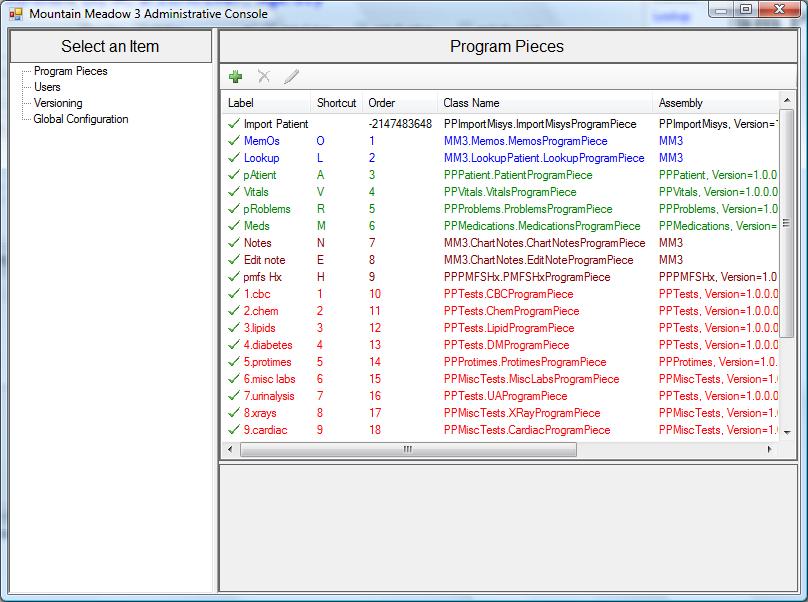
Click the green Plus sign to view all the pieces in your working directory with the option to add one of them to your program. You will get an exception if your piece, here shown as HelloUserDisplay.dll, references another dll that isn't in the directory, or if it references a different version from that in the directory. (Don't overwrite the MM3Common.dll that is in the directory because all the other pieces reference it.)
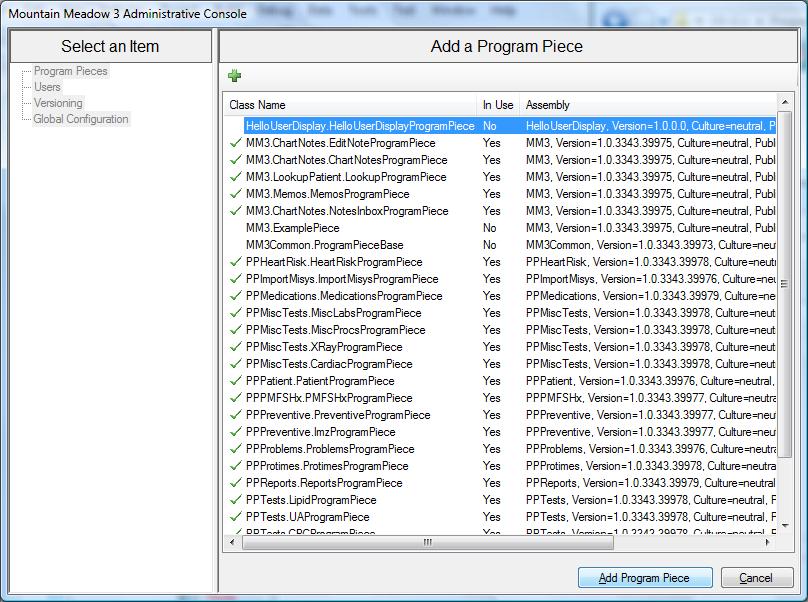
When you click [Add Program Piece] at the bottom you will get to edit the properties for showing the piece in the program:
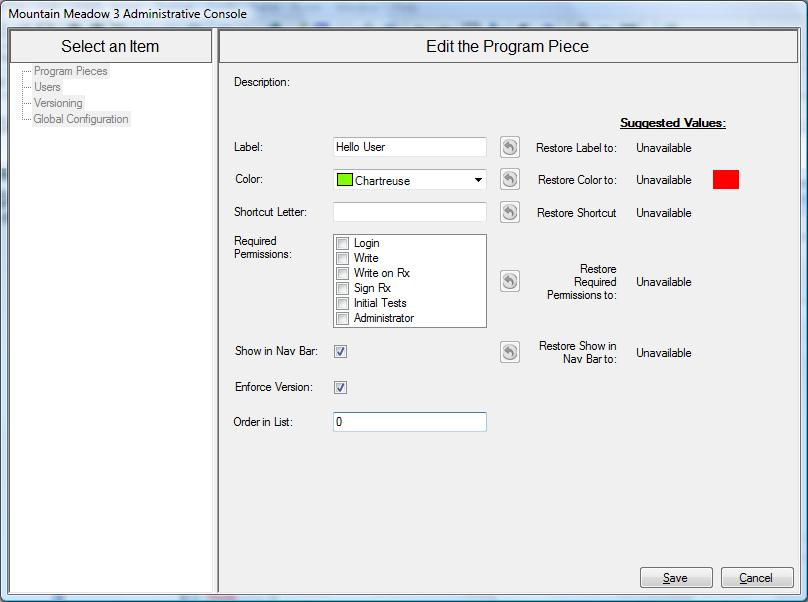
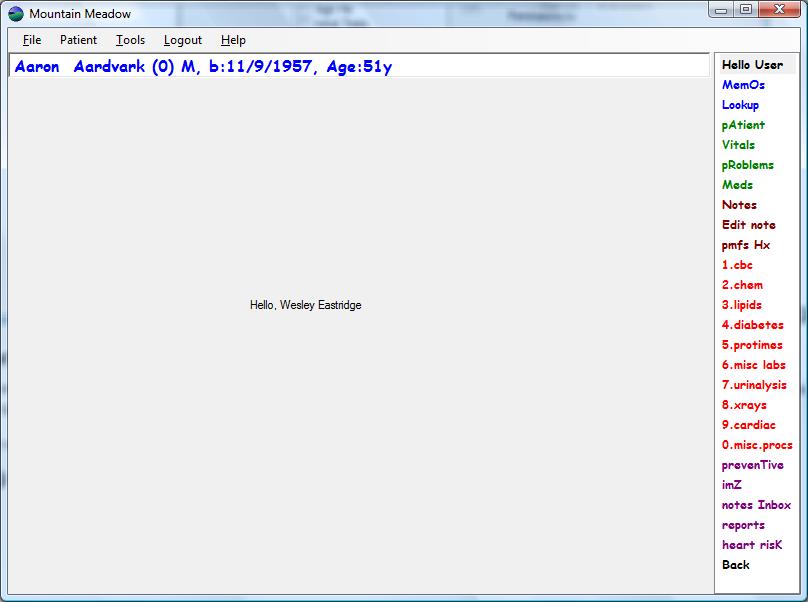
Clicking [Save] on the properties screen saves the information for loading the new program piece in the database. The next time you start Mountain Meadow it will read this information and include your new piece in its list of program pieces.
If you gave it a label in the Navigation Bar it will show up there; if not it will still be under the Tools, Windows menu items.
Next tutorial: Creating a simple plugin piece: PPHelloWorld.htm